BitTitan Auth Update: Action Required for Teams, OneDrive, and SharePoint
BitTitan's authentication update hit my projects this week. Here's what broke, how to fix it for standard and carve-out scenarios, and the Project Summary checks you need to run right now.
I received an email on January 9th about an update to BitTitan's authorization flow for M365 projects due to Microsoft's updated security standards. The rollout happened this week (January 19th, 2026), and it affected me and some existing projects on Wednesday, January 21st.
This update impacted some of my existing Teams and OneDrive migrations. I had to re-authenticate on both the source and destination tenants. This was easily done for clients where I had Global Admin permissions, but it required a few extra steps for my carve-out client.
Here is what happened, how I fixed it, and what you need to look out for in other scenarios.
The Fix: Standard Projects
If you have Global Admin access to both the Source and Destination tenants, this is a quick fix:
- Navigate to your Source and Destination endpoints in MigrationWiz.
- Re-authenticate both endpoints.
- The new flow enforces PKCE (Proof Key for Code Exchange) and requires you to use the BitTitan-provided application (custom "Bring Your Own" apps are no longer supported for these workloads).
The Fix: Carve-Out Projects
In a carve-out scenario, you usually do not have direct access to the Source tenant.
In this case, I had to contact the client to facilitate the update. I went to the endpoint settings in MigrationWiz and generated the Application Re-consent link directly from the "Authorize" button. I emailed this link to the client's IT Admin. They clicked it, signed in with their Global Admin credentials to grant the permissions, and the token was refreshed without requiring me to access their environment directly.
Other Scenarios & The "Project Summary" Check
Below are other cases where you may be affected and what you need to verify, based on the BitTitan Project Summary Guide:
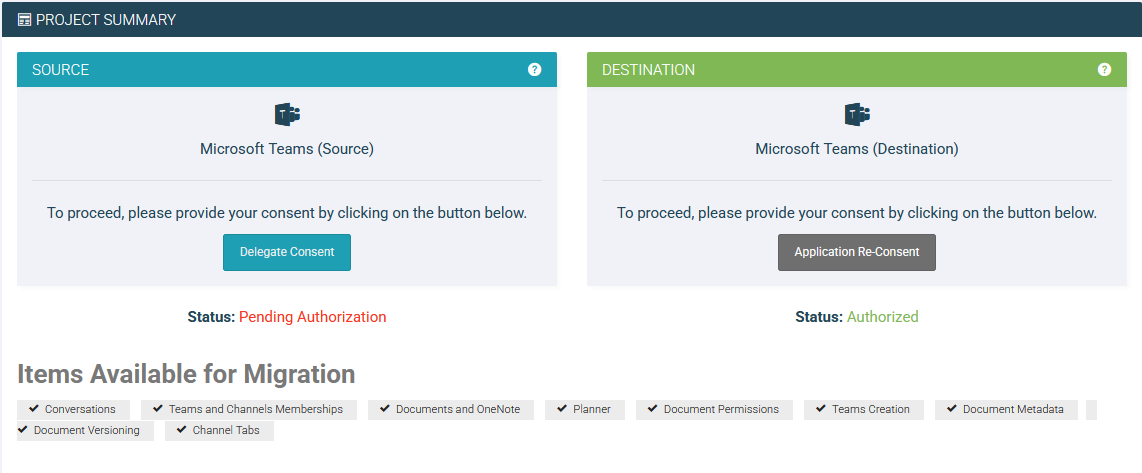 The Project Summary page shows the authorization status for both Source and Destination endpoints. Check this page for each project type to verify consent status.
1. Teams Private Chat Migrations
These setups are more specific than standard Teams migrations:
- Source: Requires Application Consent.
- Destination: Requires BOTH Application Consent and Delegate Permissions.
- Check this: If your destination endpoint only has one type of consent, your private chat history migration will fail.
2. The "Shared Endpoint" Glitch
If you are running multiple projects (e.g., a Mailbox project and a OneDrive project) that use the same source endpoint configuration, verify each project individually.
- The Issue: The "Consent Required" banner might not update correctly across all projects just because you fixed one of them.
- The Fix: Don't rely on the banner in the main dashboard. Go specifically to the Project Summary page for each project type to verify that the "Consent Status" is listed as Authorized.
3. Documents (SharePoint/OneDrive)
Ensure you have selected both Application and Delegate consent if your specific scenario requires impersonation at the destination. The Project Summary page will explicitly list "Documents Migration Consent" status—if it's not green there, your batches won't run.